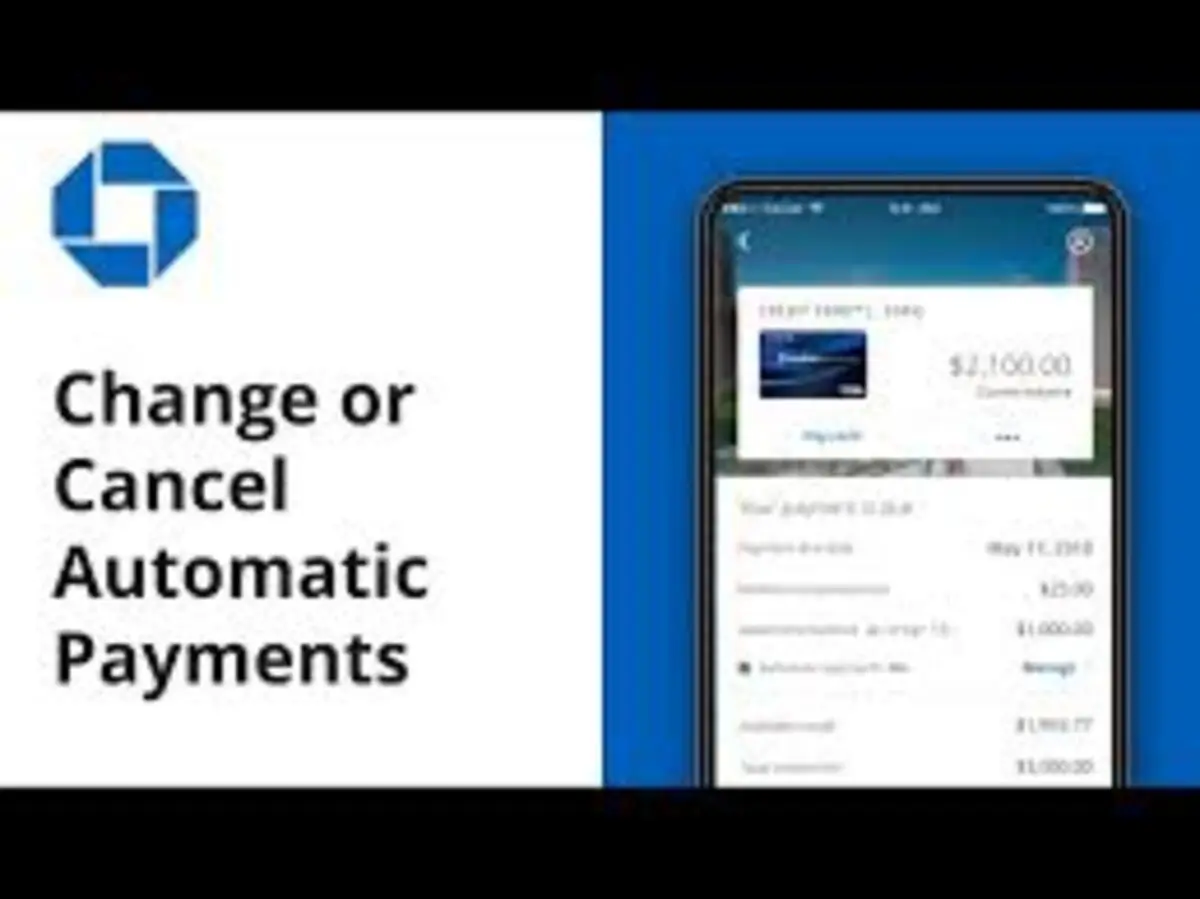
We may earn a commission for purchases through links on our site at no cost to you, Learn more.
- Understand the need to stop payments for incorrect amounts, duplicates, fraud, or change of plans.
- Access the Chase Mobile App by downloading it and logging in.
- Navigate to the “Payments” section to manage your payments.
- Stop a scheduled payment by selecting and canceling it in the “Scheduled Payments” section.
- Cancel a recurring payment through the “Recurring Payments” section.
- Report and stop fraudulent payments by contacting Chase customer service.
- Mastering the app’s features helps you manage finances accurately and securely.
How to Stop Payment on Chase Mobile App
In today’s fast-paced world, managing your finances on the go has become a necessity. Mobile banking apps have revolutionized the way we handle our money, providing convenience and accessibility at our fingertips.
Chase Mobile App, offered by JPMorgan Chase, is one of the most popular banking apps, allowing users to manage their accounts, pay bills, and transfer funds seamlessly. However, there may be times when you need to stop a payment due to various reasons such as incorrect amounts, duplicate payments, or fraudulent transactions.
This blog post will guide you through the process of how to stop payment on Chase Mobile App, ensuring you have the knowledge to manage your finances efficiently and securely.
Understanding the Need to Stop Payments
Stopping a payment can be crucial in certain situations to avoid financial losses or errors. Some common scenarios where you might need to stop a payment include:
- Incorrect Payment Amount: You may have entered the wrong amount while scheduling a payment.
- Duplicate Payment: You accidentally made a duplicate payment.
- Fraudulent Transactions: Unauthorized transactions that you did not initiate.
- Change of Plans: You decide not to proceed with a previously scheduled payment.
Understanding these scenarios helps highlight the importance of knowing how to stop payment on Chase Mobile App. By mastering this skill, you can protect your finances and ensure that your transactions are accurate and secure.
Accessing the Chase Mobile App
The first step in stopping a payment is accessing the Chase Mobile App. If you haven’t already downloaded the app, it is available on both the Apple App Store and Google Play Store. Follow these steps to get started:
- Download and Install the App: Search for “Chase Mobile App” in your respective app store and download it. Once installed, open the app.
- Log In: Enter your Chase online banking username and password. If you haven’t registered for online banking, you’ll need to do so on the Chase website before logging into the app.
- Navigate to the Payment Section: Once logged in, navigate to the “Payments” section of the app. This is where you can view and manage all your scheduled and recent payments.
By following these steps, you will be ready to manage your payments and learn how to stop payment on Chase Mobile App.
How to Stop a Scheduled Payment?
Stopping a scheduled payment is a straightforward process on the Chase Mobile App. Here’s a step-by-step guide:
- Access the Payments Section: Open the Chase Mobile App and log in. Navigate to the “Payments” section from the main menu.
- View Scheduled Payments: Select “Scheduled Payments” to view a list of all payments that are currently scheduled but not yet processed.
- Select the Payment to Stop: Find the payment you wish to stop from the list and select it.
- Cancel the Payment: Once you’ve selected the payment, you’ll see an option to “Cancel Payment.” Tap on this option and confirm your choice.
It’s important to note that you can only stop payments that have not yet been processed. Once a payment has been processed, you will need to contact Chase customer service for further assistance.
How to Stop a Recurring Payment?
Recurring payments are automatic payments set to occur at regular intervals, such as monthly subscriptions or bill payments. Stopping a recurring payment on the Chase Mobile App involves a few additional steps:
- Access the Payments Section: Log into the Chase Mobile App and navigate to the “Payments” section.
- View Recurring Payments: Select “Recurring Payments” to see a list of all automatic payments set up on your account.
- Select the Recurring Payment: Find the recurring payment you wish to stop and select it.
- Cancel the Recurring Payment: Tap on the option to “Cancel Recurring Payment” and confirm your choice.
By following these steps, you can effectively manage and stop any recurring payments, ensuring you have control over your finances.
Stopping a Payment Due to Fraud
If you suspect that a payment is fraudulent, it’s crucial to act quickly to minimize potential financial damage. Here’s how to stop a fraudulent payment on Chase Mobile App:
- Access the Payments Section: Open the Chase Mobile App and log in. Navigate to the “Payments” section.
- Identify the Fraudulent Payment: Review your recent payments and identify the one you suspect to be fraudulent.
- Report the Fraud: Instead of simply stopping the payment, you should report the fraudulent activity immediately. Contact Chase customer service directly through the app or by phone. Chase has a dedicated fraud protection team that will assist you in securing your account and stopping the fraudulent payment.
Taking these steps ensures that you handle fraudulent payments swiftly and securely, protecting your account from further unauthorized transactions.
Frequently Asked Questions
Here are some of the related questions people also ask:
How do I download the Chase Mobile App?
You can download the Chase Mobile App from the Apple App Store or Google Play Store by searching for “Chase Mobile App” and installing it on your device.
Can I stop a payment after it has been processed on the Chase Mobile App?
No, once a payment has been processed, it cannot be stopped through the app. You will need to contact Chase customer service for further assistance.
How do I cancel a recurring payment on Chase Mobile App?
Log into the Chase Mobile App, navigate to the “Payments” section, select “Recurring Payments,” find the payment you wish to cancel, and tap “Cancel Recurring Payment.”
What should I do if I notice a fraudulent transaction on my Chase Mobile App?
Report the fraudulent transaction immediately by contacting Chase customer service through the app or by phone. They will assist you in securing your account and stopping the payment.
Is it possible to stop a payment if I entered the wrong amount?
Yes, you can stop a payment if you entered the wrong amount by accessing the “Scheduled Payments” section in the Chase Mobile App and canceling the incorrect payment before it is processed.
How do I view my scheduled payments on the Chase Mobile App?
To view scheduled payments, log into the Chase Mobile App, go to the “Payments” section, and select “Scheduled Payments” to see a list of all upcoming payments.
What happens if I accidentally make a duplicate payment on the Chase Mobile App?
If you make a duplicate payment, you can stop one of the payments by accessing the “Scheduled Payments” section and canceling the duplicate before it is processed. If both payments are processed, contact Chase customer service for assistance.
The Bottom Line: How to Stop Payment on Chase Mobile App?
Knowing how to stop payment on Chase Mobile App is an essential skill for managing your finances effectively. Whether it’s stopping a scheduled payment, canceling a recurring payment, or dealing with fraudulent transactions, the Chase Mobile App provides the tools and features needed to handle these situations efficiently.
By understanding the various scenarios that may require stopping a payment and following the step-by-step guides provided in this blog post, you can take control of your financial transactions and avoid potential errors or losses. Always remember to act swiftly when dealing with fraudulent transactions and contact Chase customer service for any assistance.
Mastering how to stop payment on Chase Mobile App empowers you to manage your finances with confidence, ensuring that your transactions are accurate, secure, and aligned with your financial goals. Embrace the convenience and security of mobile banking by utilizing the features of the Chase Mobile App to their fullest potential.